<?xml version="1.0" encoding="utf-8"?><feed xmlns="http://www.w3.org/2005/Atom" xml:lang="en-us"><generator uri="https://gohugo.io/" version="0.156.0">Hugo</generator><title type="html">Networking on Marcin Jasion - Pragmatic DevOps</title><link href="https://2a300508.mjasion.pages.dev/tags/networking/" rel="alternate" type="text/html" title="html"/><link href="https://2a300508.mjasion.pages.dev/tags/networking/index.xml" rel="alternate" type="application/rss+xml" title="rss"/><updated>2022-06-29T00:00:00+02:00</updated><id>https://2a300508.mjasion.pages.dev/tags/networking/</id><entry><title type="html">How to setup AWS Site-to-Site VPN with Unifi UDM 🔒</title><link href="https://2a300508.mjasion.pages.dev/posts/cloud/how-to-setup-aws-site-to-site-vpn-with-unifi-udm/?utm_source=atom_feed" rel="alternate" type="text/html"/><link href="https://2a300508.mjasion.pages.dev/posts/kubernetes/how-to-debug-istio-upstream-reset/?utm_source=atom_feed" rel="related" type="text/html" title="How to debug Istio Upstream Reset 502 UPE (old 503 UC)"/><id>https://2a300508.mjasion.pages.dev/posts/cloud/how-to-setup-aws-site-to-site-vpn-with-unifi-udm/</id><author><name>Marcin Jasion</name></author><published>2022-06-29T00:00:00+02:00</published><updated>2022-06-29T00:00:00+02:00</updated><content type="html"><![CDATA[<blockquote>Site-to-Site VPN allows connecting local network with AWS VPC. This blog is a step-by-step instruction to establish connection</blockquote><p>By default resources, you launch on the cloud (EC2, RDS, and others) cannot communicate with your local networks like home or office. To allow this you can create a Site-to-Site VPN. This VPN connection will be established between your router and AWS VPC.</p>
<p>Creating VPN between networks is <a href="https://docs.aws.amazon.com/vpn/latest/s2svpn/SetUpVPNConnections.html" target="_blank" rel="noopener">well documented</a>. However, you can have issues configuring your home router. At home, I have a Unifi Dream Machine router, which is designed for small networks, but has features that match advanced routers for offices. One of them is a Site-to-Site VPN using the IPSec protocol.</p>
<h2 id="setup-vpn-on-aws-">Setup VPN on AWS ☁️</h2>
<p>The first step is to create a VPN connection on AWS. For this blog I will use&hellip; the default VPC 🙂. To configure it AWS requires to define 3 components: Customer Gateway, Virtual Private Gateway and VPN connection.</p>
<p>The Customer Gateway is basically just an entity that holds the information about your home router - public IP.
The Virtual Private Gateway is the virtual entity on the VPC side, that allows configuring routing to that gateway. That VPG is attached to the VPN. So the last entity is the VPN connection which brings it all together and establishes the VPN tunnels between your home or office and VPC.</p>
<h3 id="create-base-components-">Create base components 🏗️</h3>
<p>To start your VPN connection start by defining Customer Gateway.
Go to the <strong>VPC</strong> tab, find the <strong>Customer Gateway</strong> panel and click the button to <strong>Create</strong>. The required field is IP address. Write here your public IP address where your router is running. Also, it is good to name this gateway. I named mine <code>home</code>.</p>
<blockquote>
<p>To quickly check you public IP you can open  <a href="https://ifconfig.co" target="_blank" rel="noopener">https://ifconfig.co</a></p>
</blockquote>
<p>The next step is to create a Virtual Private Gateway. Go to the <strong>Virtual Private Gateway</strong> panel and click <strong>Create</strong>. It just asks for a name. Let&rsquo;s name it also <code>home</code>. The VPG state will be detached. I will come back to it later.

<img src="/posts/cloud/how-to-setup-aws-site-to-site-vpn-with-unifi-udm/virtual_gateway_notassigned.png" alt=""></p>
<h3 id="create-a-vpn-connection-">Create a VPN connection 🔒</h3>
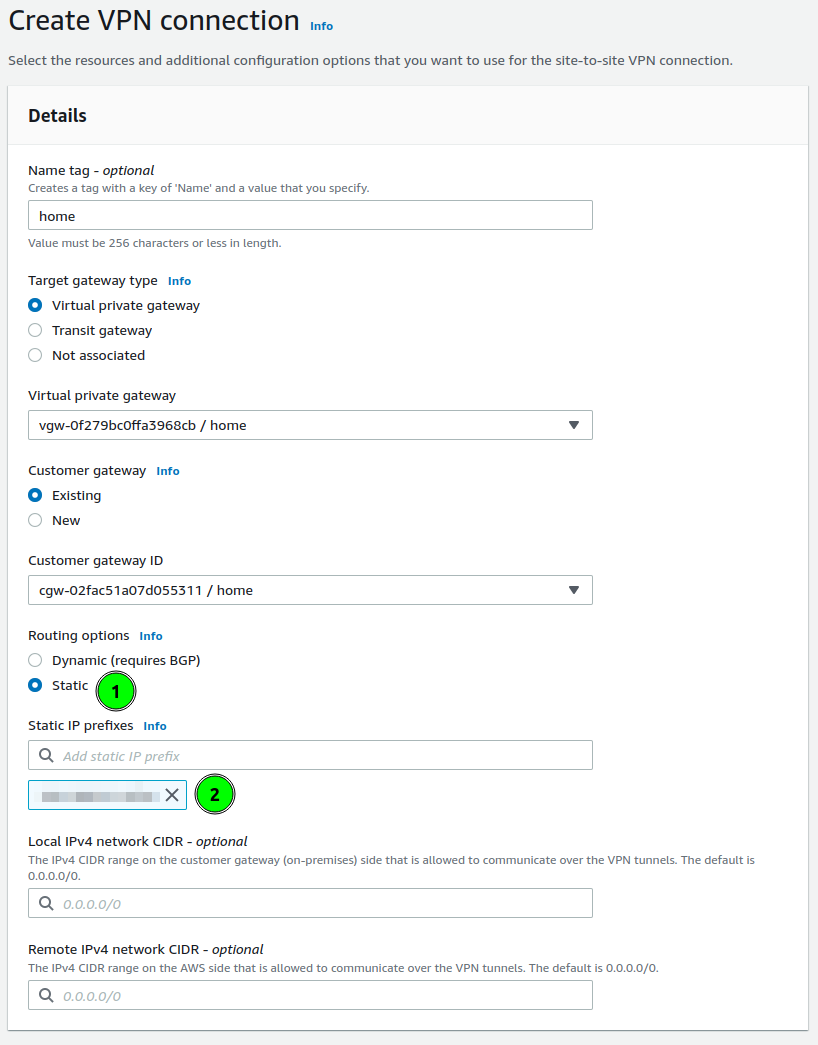
<p>This is the time to start defining VPN. Open the <strong>Site-to-Site VPN connection</strong> panel and click <strong>Create VPN Connection</strong>. The form will have 3 panels: details and tunnel options.</p>
<p><strong>Details</strong> start from defining the gateway on the VPC side. Choose <strong>Virtual private gateway</strong> and in the form select your VPG.</p>
<p>Next select <strong>Customer gateway</strong>. Here you define with which router the VPN will be established.</p>
<p>There is the last configuration to set: routing. It is a section where you can define which local networks the VPN will be used for. On the screenshot, I marked this as a point <strong>1</strong>.</p>
<p>AWS allows for two options: dynamic routing based on BGP, and statically defined. In my case, I am using static.
In the prefixes, I am putting my local network prefixes(like <code>192.168.1.0/24</code>). You are allowed to put multiple networks here.</p>
<p><img src="/posts/cloud/how-to-setup-aws-site-to-site-vpn-with-unifi-udm/create_vpn.png" alt=""></p>
<h3 id="configure-tunnel-options-">Configure Tunnel Options ⚙️</h3>
<p>Tunnel options allow defining the IPSec parameters. AWS creates 2 tunnels, to which you can connect and each of them you can configure differently. Or the same 🙂.</p>
<p>What I am always choosing is:</p>
<ul>
<li><strong>Encryption algorithms</strong>: AES-256 (for both phases)</li>
<li><strong>Integrity algorithms</strong>: SHA2-256, SHA2-384, SHA2-512</li>
<li><strong>DH groups</strong>: all above 14</li>
<li><strong>IKE Version</strong>: ikev2</li>
</ul>
<p>Those parameters will be crucial for setting up our Unifi router.</p>
<p>When you finish these changes you can create the VPN and wait a few seconds. The VPN connection should be ready.
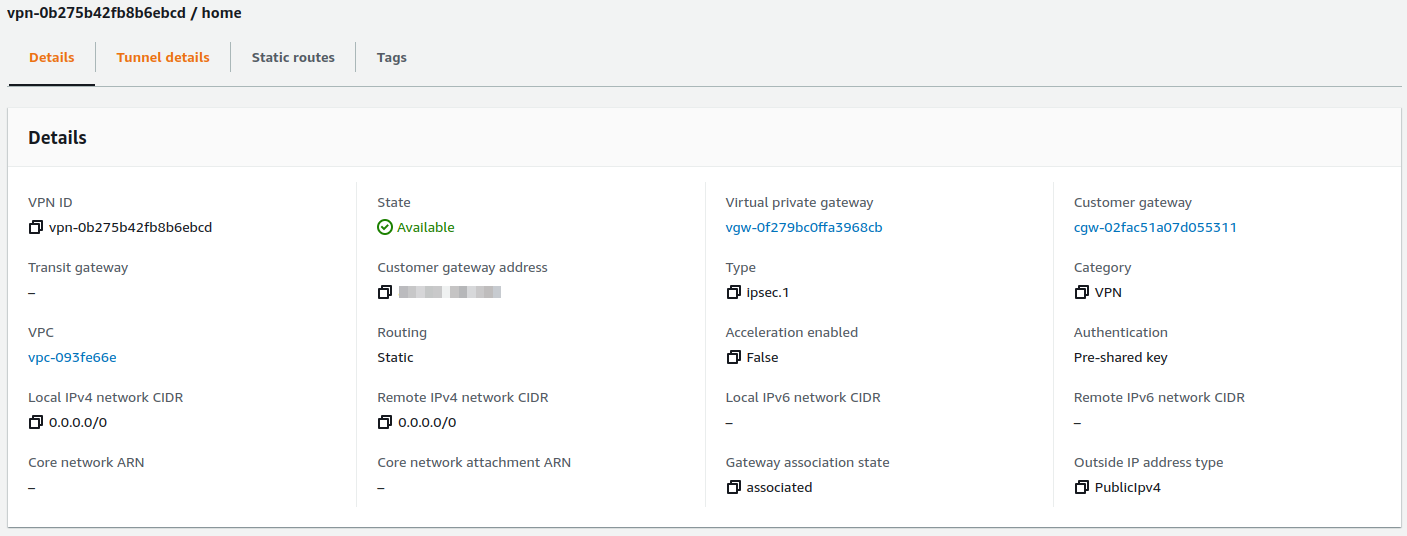
<img src="/posts/cloud/how-to-setup-aws-site-to-site-vpn-with-unifi-udm/vpn_ready.png" alt=""></p>
<h3 id="configure-vpc-routing-">Configure VPC Routing 🛣️</h3>
<p>Previously I mentioned that the Virtual Private Gateway state is not attached to any VPC. We can reassign the VPN connection between VPCs by changing attachments.</p>
<p>To attach go back to <strong>Virtual Private Gateway</strong> and select your VPG and in <strong>Actions</strong>, button find <strong>Attach to VPC</strong>. Select your VPC and your VPG should be available to configure routing on VPC.

<img src="/posts/cloud/how-to-setup-aws-site-to-site-vpn-with-unifi-udm/virtual_gateway_assigned.png.png" alt=""></p>
<p>On VPC the last thing to configure is routes. As we have assigned VPG, and networks from our home are known (configured on VPN with static routes), we can configure automated propagation of those rules to VPC route tables. To configure this perform:</p>
<ol>
<li>Go to <strong>Route tables</strong></li>
<li>Select routes assigned to VPC, or those which should have access to your home.</li>
<li>Select <strong>Actions</strong> button, and choose <strong>Edit route propagation</strong>,</li>
<li>Select Virtual private gateway</li>
</ol>
<p>After a few seconds, the new route should be added
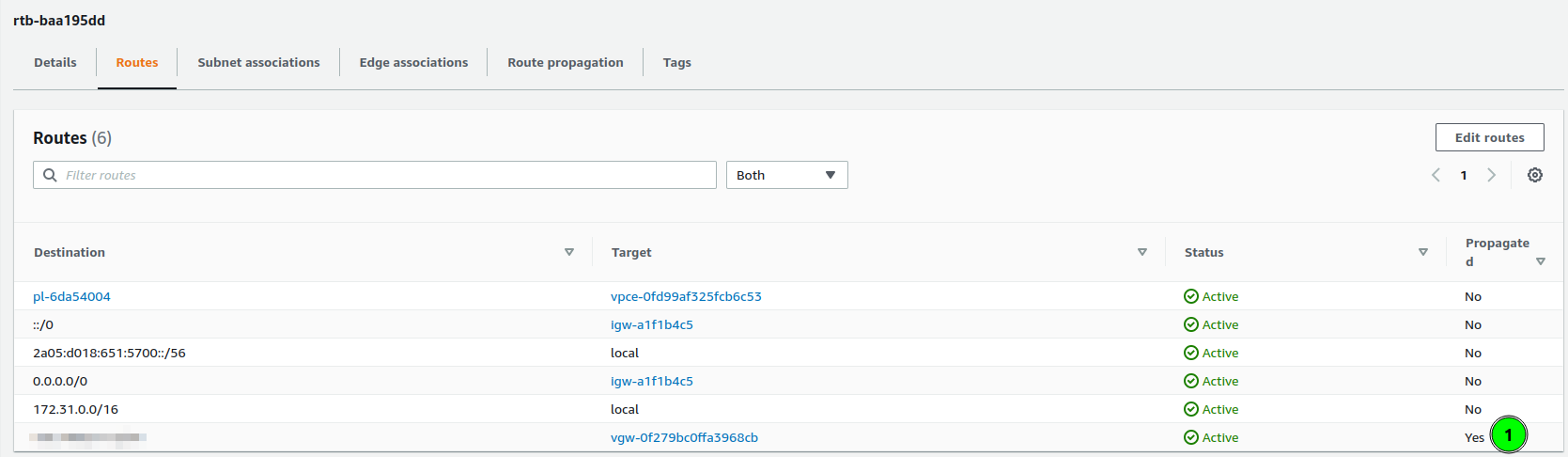
<img src="/posts/cloud/how-to-setup-aws-site-to-site-vpn-with-unifi-udm/vpc_routes.png" alt="">
As you can see, the last route is &ldquo;Propagated&rdquo;, and its target is my virtual private gateway.</p>
<h2 id="setup-vpn-on-unifi-">Setup VPN on Unifi 🏠</h2>
<p>Having configured AWS VPC, the last part is to configure our router. In my home, I have Unifi Dream Machine, with the latest software (Network 7.1).</p>
<p>To create a VPN connection:</p>
<ul>
<li>Go to <strong>Settings</strong> &gt; <strong>Teleport &amp; VPN</strong>,</li>
<li>Scroll down to <strong>Site-to-Site VPN</strong> and click  <strong>Create</strong>,
<img src="/posts/cloud/how-to-setup-aws-site-to-site-vpn-with-unifi-udm/udm-ipsec.png" alt=""></li>
</ul>
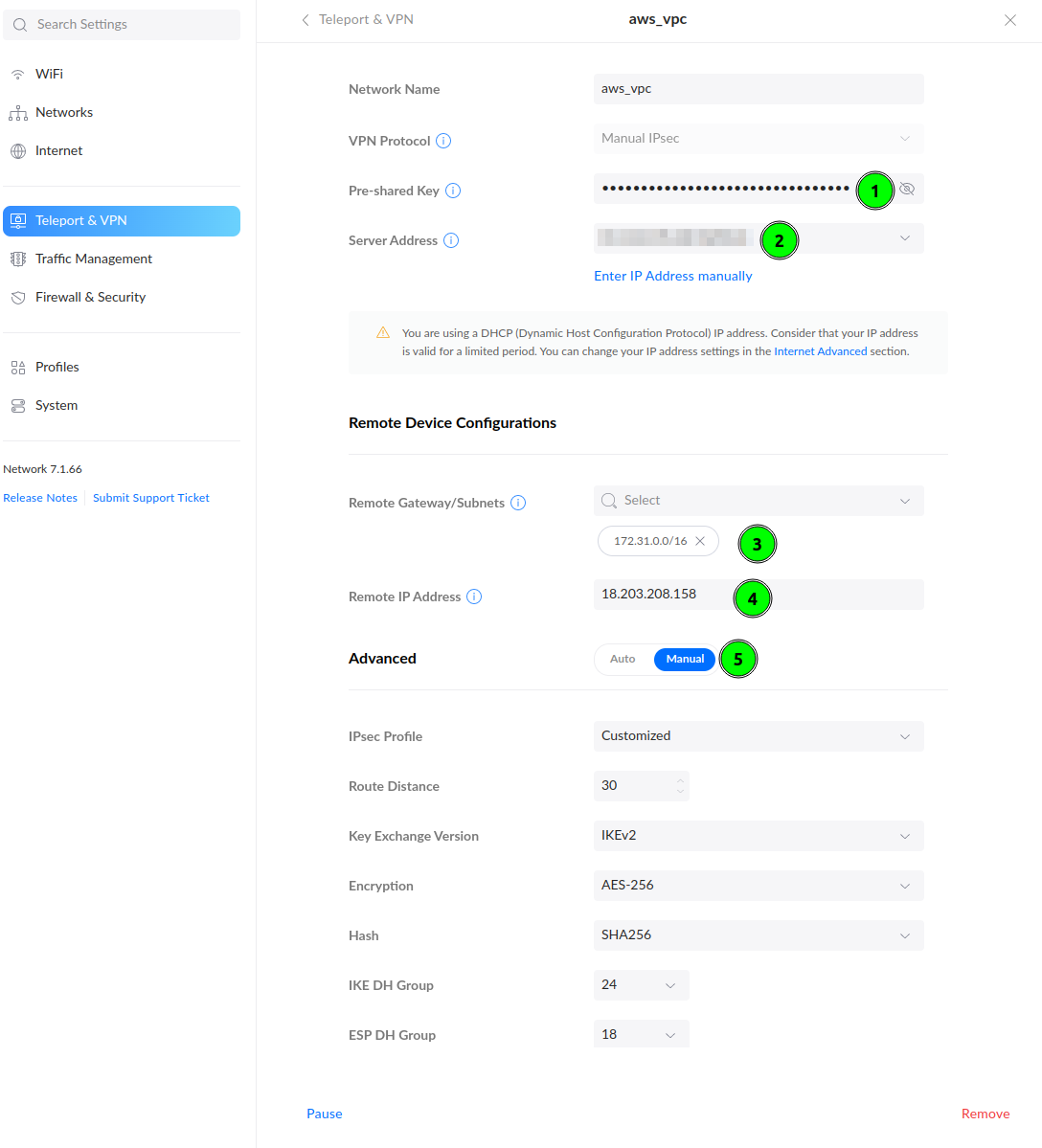
<p>Start filling out the form. The Pre-Shared Key you could configure in Tunnel Options. If you have skipped this, go to the AWS VPN tab, and click <strong>Download Configuration</strong>. In this file you will find the PSK to fill in point 1 and the <strong>Remote IP Address</strong> (point 4).
In the <strong>Remote Gateway/Subnets</strong>(point 3) put AWS VPC network addressing. In my case, it was <code>172.31.0.0/16</code>.</p>
<p>To align encryption options with <strong>Tunnel Options</strong> on AWS, select <strong>Manual</strong> in Advanced configuration and customize. Configure your parameters according to how you have configured them on AWS. I recommend using <strong>AES-256</strong> and higher DH Groups and use the above image as an example.</p>


<div class="alert success">
    <span><i data-feather="check-circle"></i></span>
    <span><strong>The VPN connection should be established ❤️</strong></span>
</div>

<h2 id="last-step---testing-">Last step - testing 🪛</h2>
<p>To check if you have a working VPN connection create an EC2 instance on this VPC.</p>


<div class="alert warning">
    <span><i data-feather="alert-triangle"></i></span>
    <span><strong>Ensure your Security group allows for your home network. You can allow access to a single port, protocol, or whole traffic.</strong></span>
</div>

<p>I have created an instance with IP <code>172.31.34.95</code>. This instance has a Security Group rule allowing for <strong>All Traffic</strong> from my home network.
When the VPN works and instance is up, a simple <code>ping</code> can prove that everything is configured:</p>
<div class="highlight"><pre tabindex="0" style="color:#f8f8f2;background-color:#272822;-moz-tab-size:4;-o-tab-size:4;tab-size:4;-webkit-text-size-adjust:none;"><code class="language-bash" data-lang="bash"><span style="display:flex;"><span>$ ping 172.31.34.95 -c <span style="color:#ae81ff">5</span>
</span></span><span style="display:flex;"><span>PING 172.31.34.95 <span style="color:#f92672">(</span>172.31.34.95<span style="color:#f92672">)</span> 56<span style="color:#f92672">(</span>84<span style="color:#f92672">)</span> bytes of data.
</span></span><span style="display:flex;"><span><span style="color:#ae81ff">64</span> bytes from 172.31.34.95: icmp_seq<span style="color:#f92672">=</span><span style="color:#ae81ff">1</span> ttl<span style="color:#f92672">=</span><span style="color:#ae81ff">63</span> time<span style="color:#f92672">=</span>38.1 ms
</span></span><span style="display:flex;"><span><span style="color:#ae81ff">64</span> bytes from 172.31.34.95: icmp_seq<span style="color:#f92672">=</span><span style="color:#ae81ff">2</span> ttl<span style="color:#f92672">=</span><span style="color:#ae81ff">63</span> time<span style="color:#f92672">=</span>38.2 ms
</span></span><span style="display:flex;"><span><span style="color:#ae81ff">64</span> bytes from 172.31.34.95: icmp_seq<span style="color:#f92672">=</span><span style="color:#ae81ff">3</span> ttl<span style="color:#f92672">=</span><span style="color:#ae81ff">63</span> time<span style="color:#f92672">=</span>36.4 ms
</span></span><span style="display:flex;"><span><span style="color:#ae81ff">64</span> bytes from 172.31.34.95: icmp_seq<span style="color:#f92672">=</span><span style="color:#ae81ff">4</span> ttl<span style="color:#f92672">=</span><span style="color:#ae81ff">63</span> time<span style="color:#f92672">=</span>38.3 ms
</span></span><span style="display:flex;"><span><span style="color:#ae81ff">64</span> bytes from 172.31.34.95: icmp_seq<span style="color:#f92672">=</span><span style="color:#ae81ff">5</span> ttl<span style="color:#f92672">=</span><span style="color:#ae81ff">63</span> time<span style="color:#f92672">=</span>38.1 ms
</span></span><span style="display:flex;"><span>
</span></span><span style="display:flex;"><span>--- 172.31.34.95 ping statistics ---
</span></span><span style="display:flex;"><span><span style="color:#ae81ff">5</span> packets transmitted, <span style="color:#ae81ff">5</span> received, 0% packet loss, time 4005ms
</span></span><span style="display:flex;"><span>rtt min/avg/max/mdev <span style="color:#f92672">=</span> 36.380/37.810/38.285/0.718 ms
</span></span></code></pre></div><blockquote>
<p>If you are not sure that you are pinging EC2 take a look on ping response times. On local networks they are much lower.</p>
</blockquote>
<h2 id="summary-">Summary ☑️</h2>
<p>Setting up VPN allows making your infrastructure secure. You don&rsquo;t have to expose ports on the public internet to have access to cloud machines.</p>
<h2 id="faq-">FAQ ❓</h2>
<p><strong>I have two network VLANs at home, should I configure some firewall rules if I don&rsquo;t want to allow access from one of them?</strong></p>
<p>Let&rsquo;s assume you have two networks: <code>home</code> and <code>guest</code>.  If the <code>guest</code> network should not have access to resources to VPN, on AWS VPN,  in <strong>Static IP Prefixes</strong> configuration you have to set only <code>home</code> network subnet.</p>
<p>Another thing are Security Groups, where we define allowed networks. If you will not set too wide network range, then it will also block access.</p>
]]></content><category scheme="https://2a300508.mjasion.pages.dev/tags/aws" term="aws" label="aws"/><category scheme="https://2a300508.mjasion.pages.dev/tags/vpn" term="vpn" label="vpn"/><category scheme="https://2a300508.mjasion.pages.dev/tags/unifi" term="unifi" label="unifi"/><category scheme="https://2a300508.mjasion.pages.dev/tags/networking" term="networking" label="networking"/></entry><entry><title type="html">How to debug Istio Upstream Reset 502 UPE (old 503 UC)</title><link href="https://2a300508.mjasion.pages.dev/posts/kubernetes/how-to-debug-istio-upstream-reset/?utm_source=atom_feed" rel="alternate" type="text/html"/><id>https://2a300508.mjasion.pages.dev/posts/kubernetes/how-to-debug-istio-upstream-reset/</id><author><name>Marcin Jasion</name></author><published>2022-04-25T00:00:00+02:00</published><updated>2022-04-25T00:00:00+02:00</updated><content type="html"><![CDATA[<blockquote>Istio can reset processing the request. This blog post shows how to analyze the issue if logs do not help</blockquote><p><a href="https://istio.io" target="_blank" rel="noopener">Istio</a> is a complex system. For the applications, the main component is the sidecar container Istio-Proxy, which proxies all traffic from all containers in Pod. And this can lead to some issues.</p>
<p>This post describes one of the most complicated problems I have encountered in my career.</p>
<h2 id="the-problem---connection-reset-">The problem - Connection Reset 🐛</h2>
<p>During Istio rollout on a huge system, with more than 40 different microservices, on a single endpoint, QA engineers found a bug. It was a POST endpoint, which was returning chunked data.</p>
<p>Istio was returning error 502, in logs an additional flag was visible: <code>upstream_reset_before_response_started</code>. The application logs confirmed that the result was correct.</p>
<blockquote>
<p>In legacy Istio versions of the presented problem Istio were returning <code>503</code> error with <code>UC</code> flag.</p>
</blockquote>
<h2 id="analyzing-issue-">Analyzing issue ⛏️</h2>
<p>Let&rsquo;s see the <code>curl</code> response and look at Istio-proxy logs:</p>
<div class="highlight"><pre tabindex="0" style="color:#f8f8f2;background-color:#272822;-moz-tab-size:4;-o-tab-size:4;tab-size:4;-webkit-text-size-adjust:none;"><code class="language-bash" data-lang="bash"><span style="display:flex;"><span>kubectl exec -it curl-0 -- curl http://http-chunked:8080/wrong -v
</span></span><span style="display:flex;"><span>&lt; HTTP/1.1 <span style="color:#ae81ff">502</span> Bad Gateway
</span></span><span style="display:flex;"><span>&lt; content-length: <span style="color:#ae81ff">87</span>
</span></span><span style="display:flex;"><span>&lt; content-type: text/plain
</span></span><span style="display:flex;"><span>&lt; date: Sun, <span style="color:#ae81ff">24</span> Apr <span style="color:#ae81ff">2022</span> 12:28:28 GMT
</span></span><span style="display:flex;"><span>&lt; server: istio-envoy
</span></span><span style="display:flex;"><span>&lt; x-envoy-decorator-operation: http-chunked.default.svc.cluster.local:8080/*
</span></span><span style="display:flex;"><span>upstream connect error or disconnect/reset before headers. reset reason: protocol error
</span></span><span style="display:flex;"><span>
</span></span><span style="display:flex;"><span>$ kubectl logs http-chunked-0 -c istio-proxy
</span></span><span style="display:flex;"><span><span style="color:#f92672">[</span>2022-04-24T12:23:37.047Z<span style="color:#f92672">]</span> <span style="color:#e6db74">&#34;GET /wrong HTTP/1.1&#34;</span> <span style="color:#ae81ff">502</span> UPE upstream_reset_before_response_started<span style="color:#f92672">{</span>protocol_error<span style="color:#f92672">}</span> - <span style="color:#e6db74">&#34;-&#34;</span> <span style="color:#ae81ff">0</span> <span style="color:#ae81ff">87</span> <span style="color:#ae81ff">1001</span> - <span style="color:#e6db74">&#34;-&#34;</span> <span style="color:#e6db74">&#34;curl/7.80.0&#34;</span> <span style="color:#e6db74">&#34;3987a4cb-2e0e-4de6-af66-7e3447600c73&#34;</span> <span style="color:#e6db74">&#34;http-chunked:8080&#34;</span> <span style="color:#e6db74">&#34;10.244.0.17:8080&#34;</span> inbound|8080<span style="color:#f92672">||</span> 127.0.0.6:39063 10.244.0.17:8080 10.244.0.14:35500 - default
</span></span></code></pre></div><h2 id="time-for-spying-">Time for spying 🕵🏻‍♂️</h2>
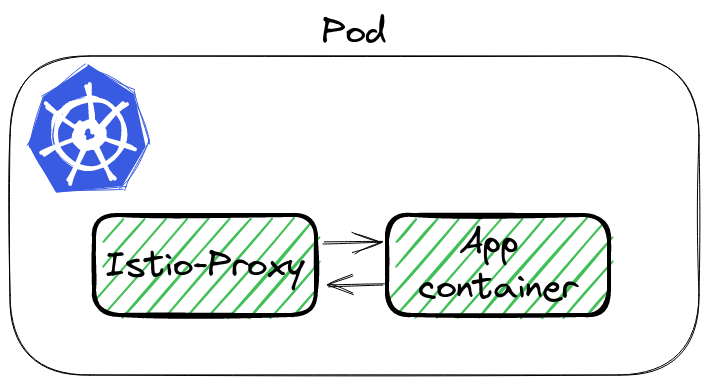
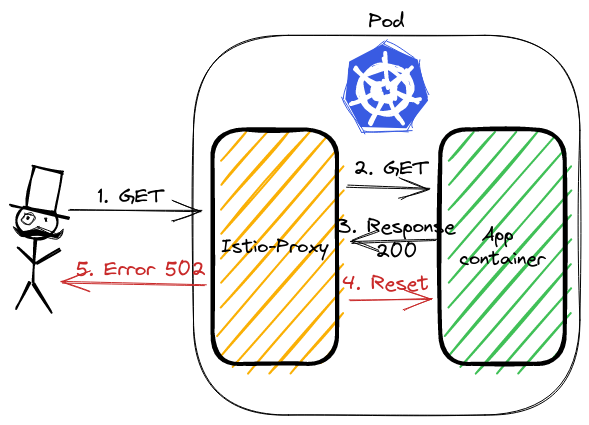
<p>To analyze the traffic we can use <code>tcpdump</code> and Wireshark. Istio-proxy runs as a sidecar, which routes whole incoming and outgoing traffic to pod through own proxy.
<img src="/posts/kubernetes/how-to-debug-istio-upstream-reset/istio-pod.png" alt="Istio Pod"></p>
<p>To sniff traffic there are 3 ways:</p>
<ol>
<li>Running tcpdump in <code>istio-proxy</code> container,</li>
<li>Using <code>kubectl</code> plugin <code>ksniff</code> - a plugin to kubectl to dump packets from pod, <a href="https://github.com/eldadru/ksniff" target="_blank" rel="noopener">github repo</a>,</li>
<li>Adding additional container to pod, with <code>root</code> permission and <code>tcpdump</code>  installed,</li>
</ol>
<p>The first option will not work by default, because <code>istio-proxy</code> runs without root permission. The third is the backup if 1 and 2 would not work. Let&rsquo;s try <a href="https://github.com/eldadru/ksniff" target="_blank" rel="noopener">ksniff</a>.</p>
<h3 id="what-is-ksniff-">What is ksniff 🛠️</h3>
<p><code>ksniff</code> in three words is a plugin that:</p>
<ul>
<li>figures  out what node is running pod with an app,</li>
<li>deploys an own pod with an affinity to that node, bound to the host network,</li>
<li>opens Wireshark on your laptop with a packet stream from the application.</li>
</ul>
<p>Let&rsquo;s execute it to sniff our application:</p>
<div class="highlight"><pre tabindex="0" style="color:#f8f8f2;background-color:#272822;-moz-tab-size:4;-o-tab-size:4;tab-size:4;-webkit-text-size-adjust:none;"><code class="language-bash" data-lang="bash"><span style="display:flex;"><span>kubectl sniff http-chunked-0 -c istio-proxy -p -f <span style="color:#e6db74">&#39;-i lo&#39;</span> -n default
</span></span></code></pre></div><blockquote>
<p><strong>Important parameters</strong></p>
<ul>
<li><code>-p</code> is a parameter to support sniffing even if the pod is non-privileged. See <a href="https://github.com/eldadru/ksniff#non-privileged-and-scratch-pods" target="_blank" rel="noopener">docs</a>,</li>
<li><code>-f '-i lo'</code> passes filter to tcpdump, we want to sniff localhost interface inside the Pod.</li>
</ul>
</blockquote>
<p>If there is no issue, our system has Wireshark in <code>PATH</code>, <code>ksniff</code> should open a new window
<img src="/posts/kubernetes/how-to-debug-istio-upstream-reset/wireshark_init.png" alt="Wireshark"></p>
<h3 id="finding-the-root-cause-">Finding the root cause 🔎</h3>
<p>Wireshark will continuously follow with new packet records. It makes it hard to figure out our particular call. We can use filters to help with searching. Knowing the request path, method, response code - we can use it to find our packet using filter:</p>
<div class="highlight"><pre tabindex="0" style="color:#f8f8f2;background-color:#272822;-moz-tab-size:4;-o-tab-size:4;tab-size:4;-webkit-text-size-adjust:none;"><code class="language-bash" data-lang="bash"><span style="display:flex;"><span>http.request.uri <span style="color:#f92672">==</span> <span style="color:#e6db74">&#34;/wrong&#34;</span>
</span></span></code></pre></div><p>It shows only a single packet, our request. Wireshark allows to show the whole TCP conversation:</p>
<ul>
<li>click right click on the packet,</li>
<li>go to <code>Conversation Filter</code>,</li>
<li>select <code>TCP</code>.</li>
</ul>
<p>Wireshark will write a filter to show the whole communication between istio-proxy container and the application container!</p>
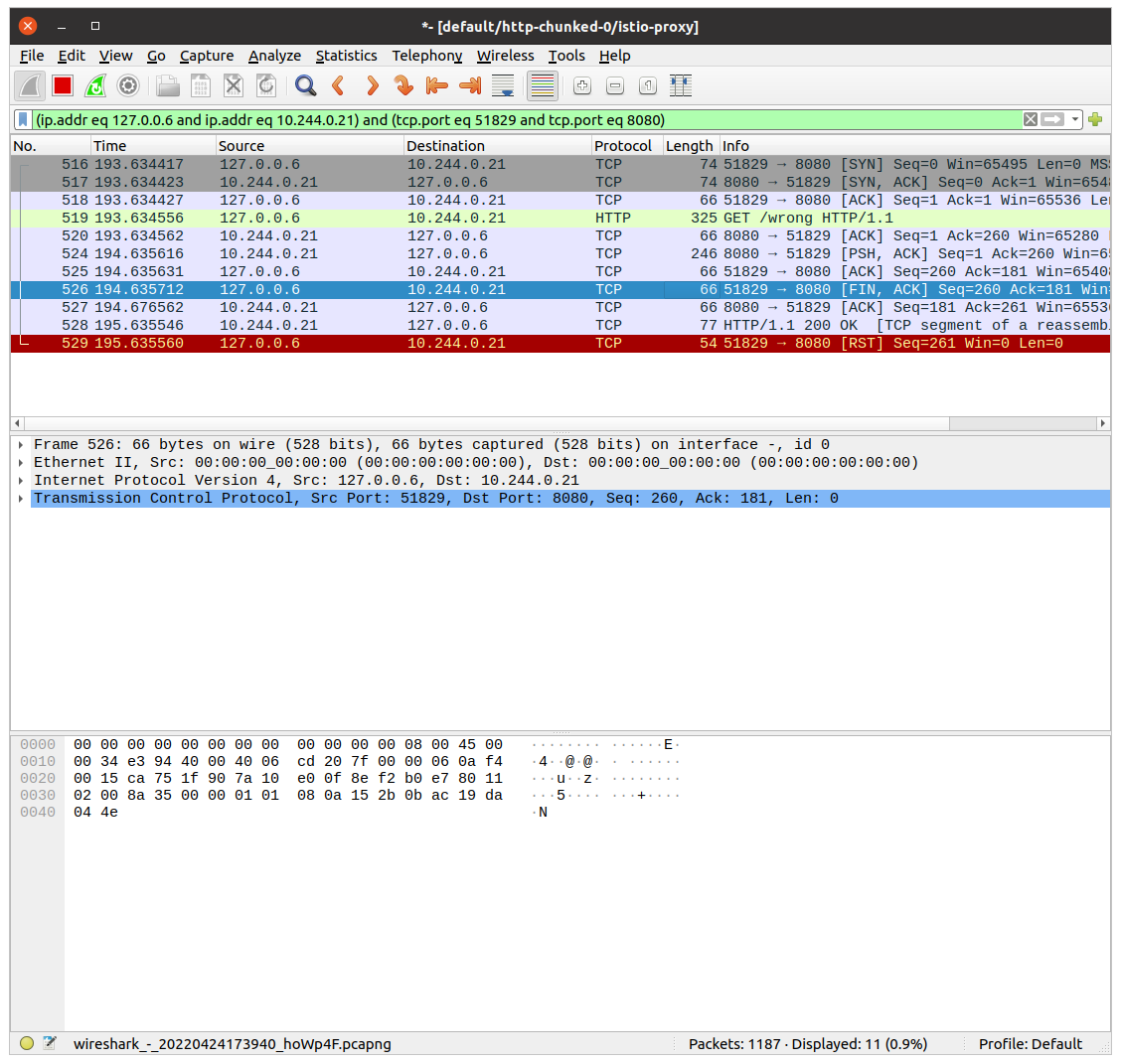
<p><img src="/posts/kubernetes/how-to-debug-istio-upstream-reset/wireshark_convesation_filter.png" alt="Wireshark - Filtering the conversation"></p>
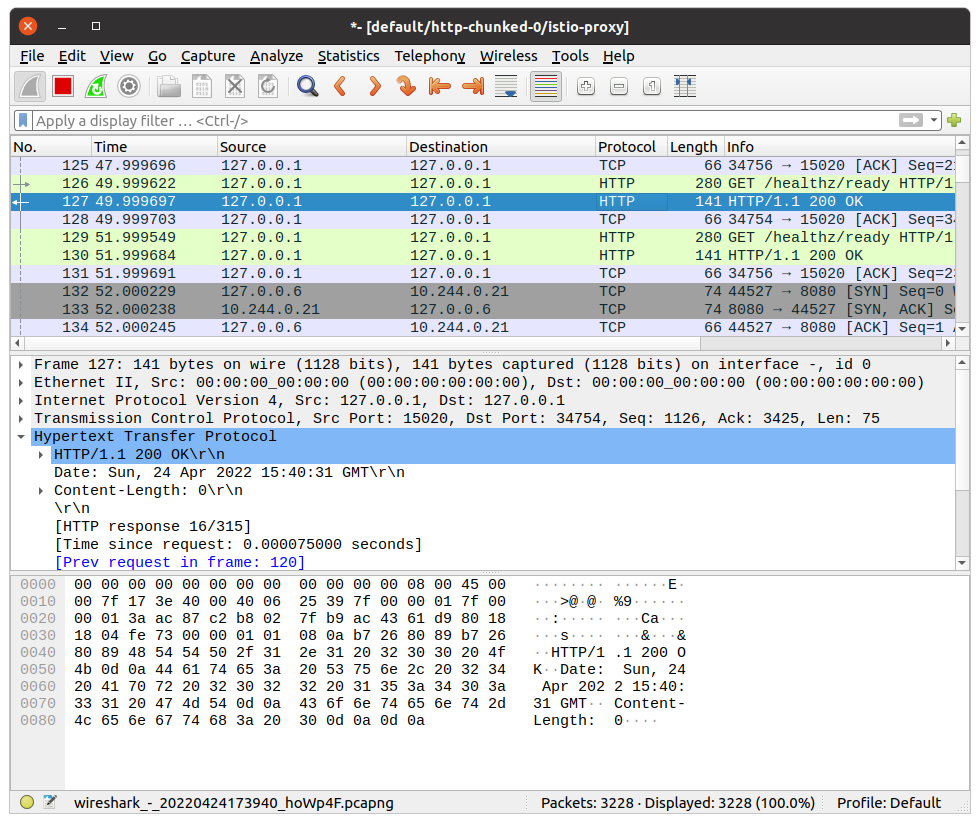
<p>Let&rsquo;s see the above image. The first 3 records are the three-way handshake packets. Later is our GET request.  The most interesting happens in the last two packets. Application container returns response HTTP 200 OK. <code>istio-proxy</code> then closes the connection with <code>RST</code> packet.</p>
<p><img src="/posts/kubernetes/how-to-debug-istio-upstream-reset/app_reset.png" alt="Wireshark - Found RST Packet"></p>
<p>This is what we saw in the logs. The flag was <code>upstream_reset_before_response_started{protocol_error}</code>. But why? This still does not explain.</p>
<h3 id="swiss-knife-by-wireshark-">Swiss knife by Wireshark 🪛</h3>
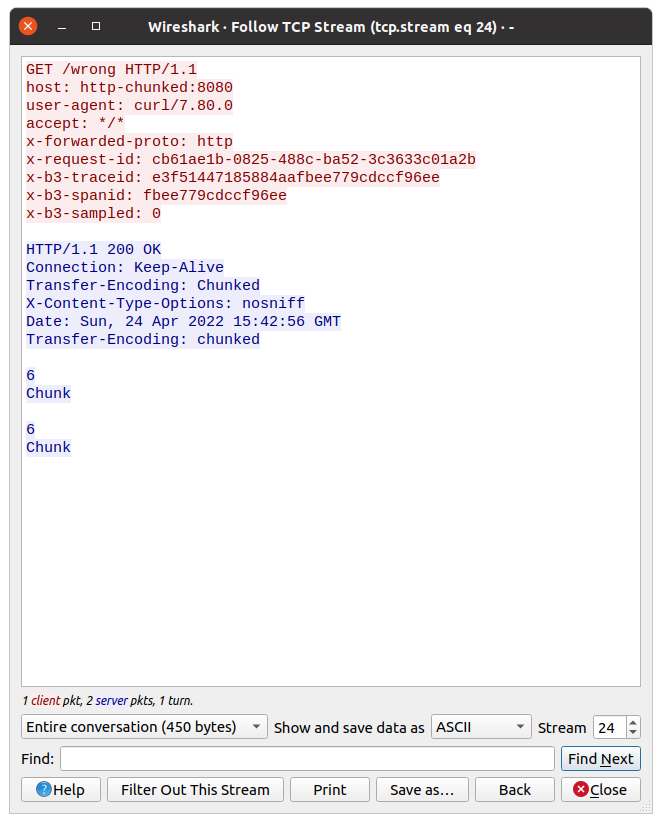
<p>It is hard to read the HTTP protocol from multiple packet bodies. But Wireshark also has a solution for that. We can see data from L7, the application one. In our case, it is the HTTP protocol.</p>
<p>Click with the right mouse on a single packet, go to the <code>Follow</code> tab, and select <code>TCP Stream</code>:</p>
<p><img src="/posts/kubernetes/how-to-debug-istio-upstream-reset/wireshark_tcp_stream.png" alt="Wireshark - Filtering TCP stream"></p>
<p>Now we can check what the request from <code>istio-proxy</code> looked like, and what was the response from the app.
Do you have an idea from the above picture?</p>
<p>Look closer at the response, there is a double <code>Transfer-Encoding</code> header. One starts from uppercase, the second one does not.</p>
<h3 id="double-transfer-encoding-header---what-does-it-mean">Double transfer-encoding header - what does it mean❔</h3>
<p>Searching over Istio issues I found <a href="https://github.com/istio/istio/issues/24753#issuecomment-656380098" target="_blank" rel="noopener">this answer</a>. The most important are the first 2 points:</p>
<blockquote>
<ol>
<li>two <code>transfer-encoding: chunked</code> is equivalent to <code>transfer-encoding: chunked, chunked</code> as per RFC,</li>
<li><code>transfer-encoding: chunked, chunked</code> doesn&rsquo;t have the same semantic as <code>transfer-encoding: chunked</code></li>
</ol>
</blockquote>
<p>Why the response was taken as double-chunked? According to <a href="https://datatracker.ietf.org/doc/html/rfc7230#section-4" target="_blank" rel="noopener">Transfer Codings in Section 4</a>, transfer-coding names <strong>are case-insensitive</strong>.</p>
<h2 id="summary-">Summary 📓</h2>
<p>As you see, Istio stands as a guard 👮‍♂️ of the HTTP protocol. If the app is returning a double-chunked response, then Istio requires it, otherwise, it rejects processing the request. <code>curl</code> ignores this inconsistency.</p>
<p>This issue was one of the most difficult tasks, which I ever had :-)</p>
<h2 id="infrastructure-to-reproduce-and-example-app-">Infrastructure to reproduce and example app 🏭</h2>
<p>In <a href="https://github.com/mjasion/istio-upstream-reset" target="_blank" rel="noopener">Github repository</a> I created example infrastructure to reproduce the problem.</p>
<p>Bootstrap of the infrastructure installs ArgoCD, Istio and the App. The sample app exposes two endpoints:</p>
<ul>
<li><code>/correct</code> - endpoint, which creates a streamed response,</li>
<li><code>/wrong</code> - is doing same as above, but additionally it set value of the <code>Transfer-Encoding</code> header to <code>Chunked</code>(uppercase).</li>
</ul>
<hr>
<p><em>I would like to thank <a href="https://www.linkedin.com/in/przemyslaw-ozimkiewicz/" target="_blank" rel="noopener">Przemysław</a> for his help and for showing me how to use Wireshark efficiently during this issue.🤝🏻</em></p>
]]></content><category scheme="https://2a300508.mjasion.pages.dev/tags/istio" term="istio" label="istio"/><category scheme="https://2a300508.mjasion.pages.dev/tags/kubernetes" term="kubernetes" label="kubernetes"/><category scheme="https://2a300508.mjasion.pages.dev/tags/debugging" term="debugging" label="debugging"/><category scheme="https://2a300508.mjasion.pages.dev/tags/networking" term="networking" label="networking"/></entry></feed>